I spent the last few weeks travelling a lot compared to my usual routine and I got quickly fed up with bringing my mobile workstation with me. My Dell precision M4600 is a powerhouse, but it’s definitely too big and too heavy for travelling, so I decided it was time to buy a small laptop just for travelling and presenting at SQL Saturdays and events around Europe.
After lots of research, I pulled the trigger on a new XPS13. It’s a very nice, tiny and light machine, beefy enough to run my virtual machines and slim enough to fit in a small bag.
So, everything fine? Not quite. The XPS13 2015 sports a stunning QHD touch display, with almost no bezel: a small wonder. The only complaint with it is windows and its (in)ability to scale applications when running at High DPI.
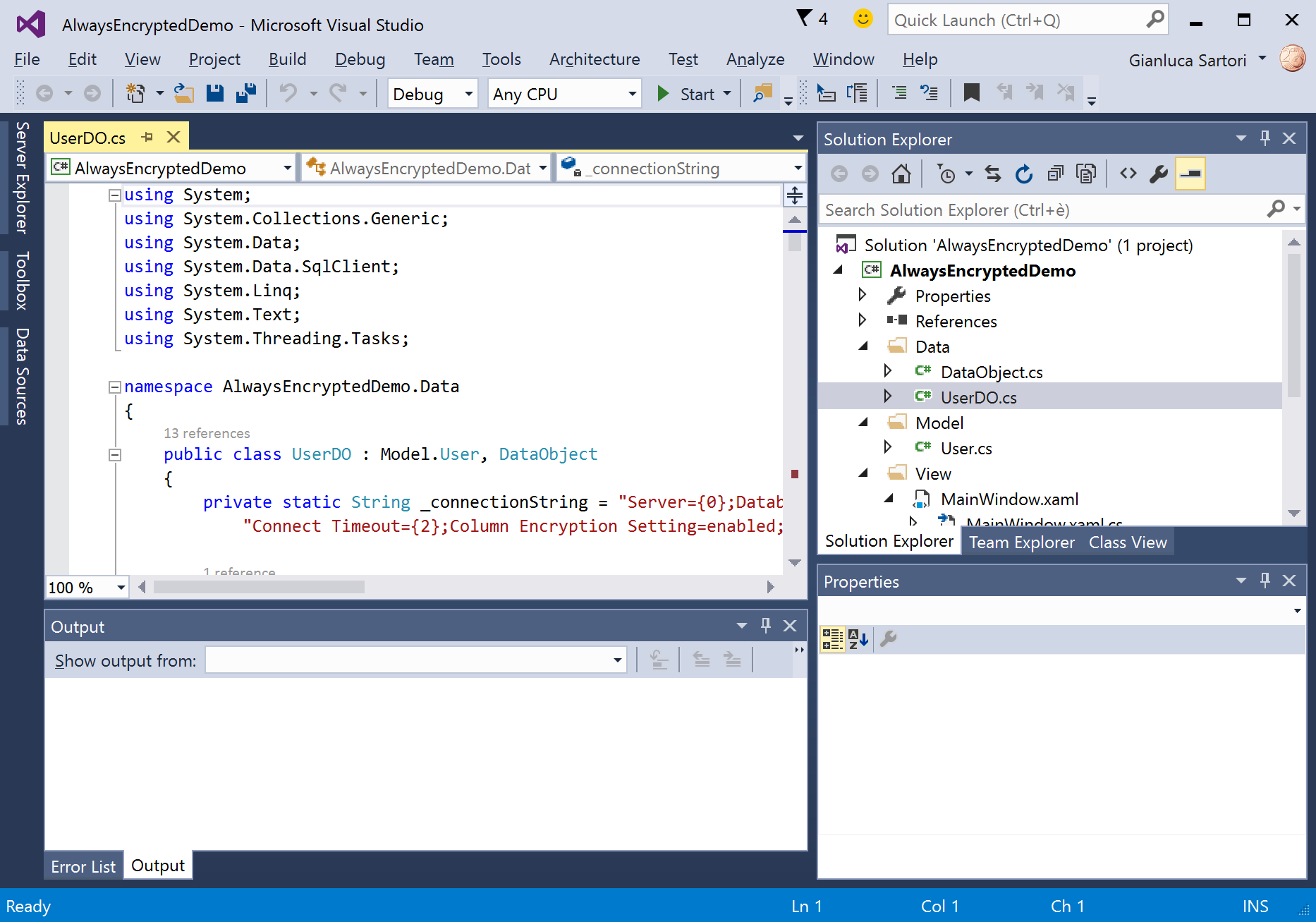
Windows got better at scaling applications on HiDPI displays and Windows 10 is doing a remarkably good job at scaling applications that can actually scale. I am running at maximum resolution (3200 x 1800) with 200% scale factor and, for instance, Visual Studio 2015 renders perfectly:
Other applications scale horribly. For instance, SSMS (SQL Server Management Studio) 2014 is a complete disaster:
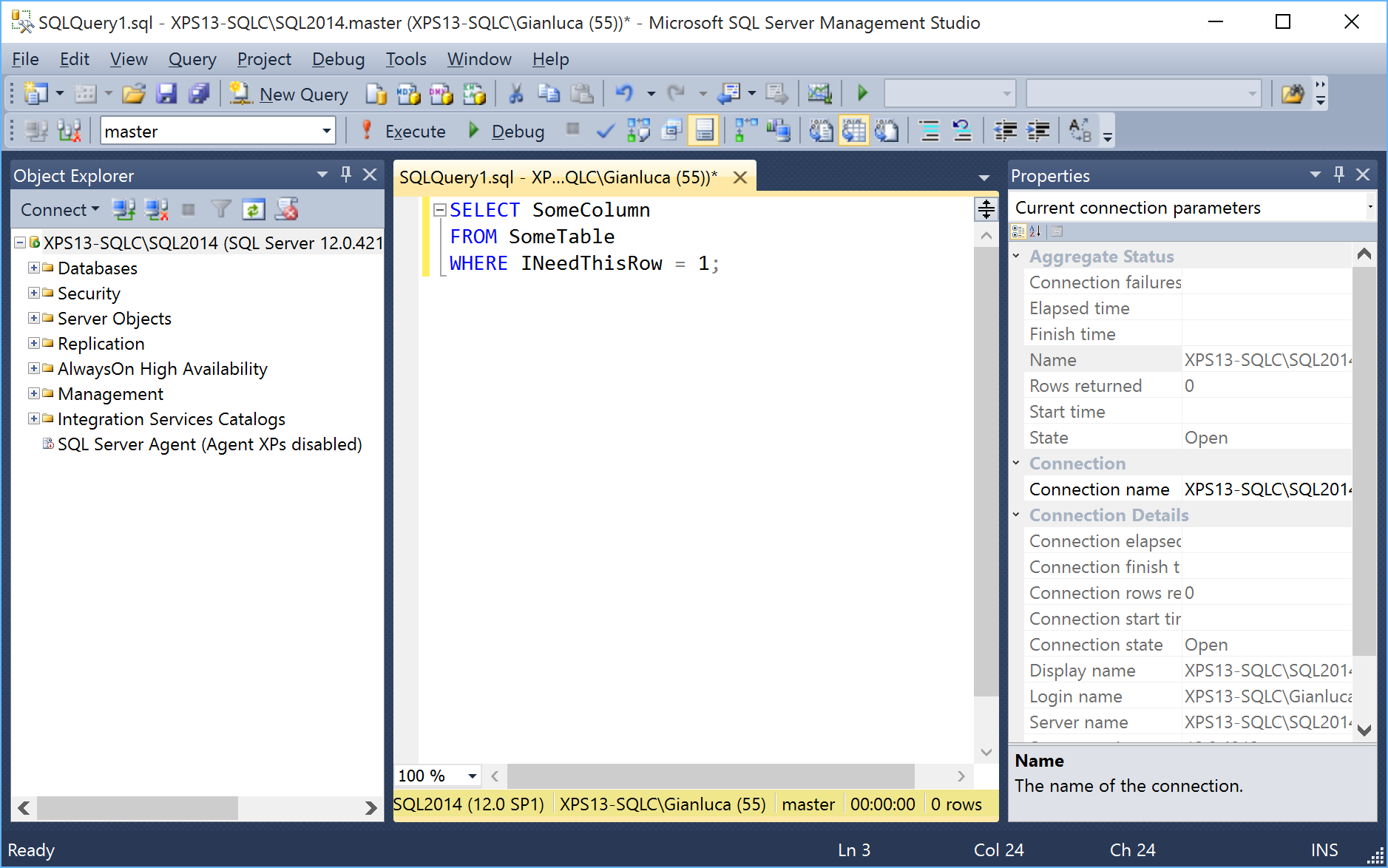
At a first glance, it looks ok, but look at those icons on the Object Explorer tree: aren’t they a little bit too small compared to the labels next to them?
I can live with small icons, but you just need to open some dialog windows to understand how bad things really are:
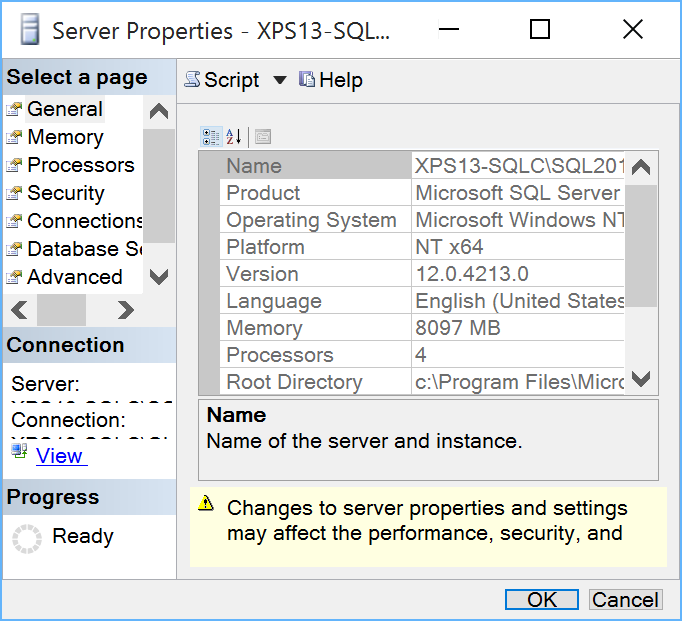
As you can see, text gets scaled correctly, but the size of the window and some controls are completely wrong.
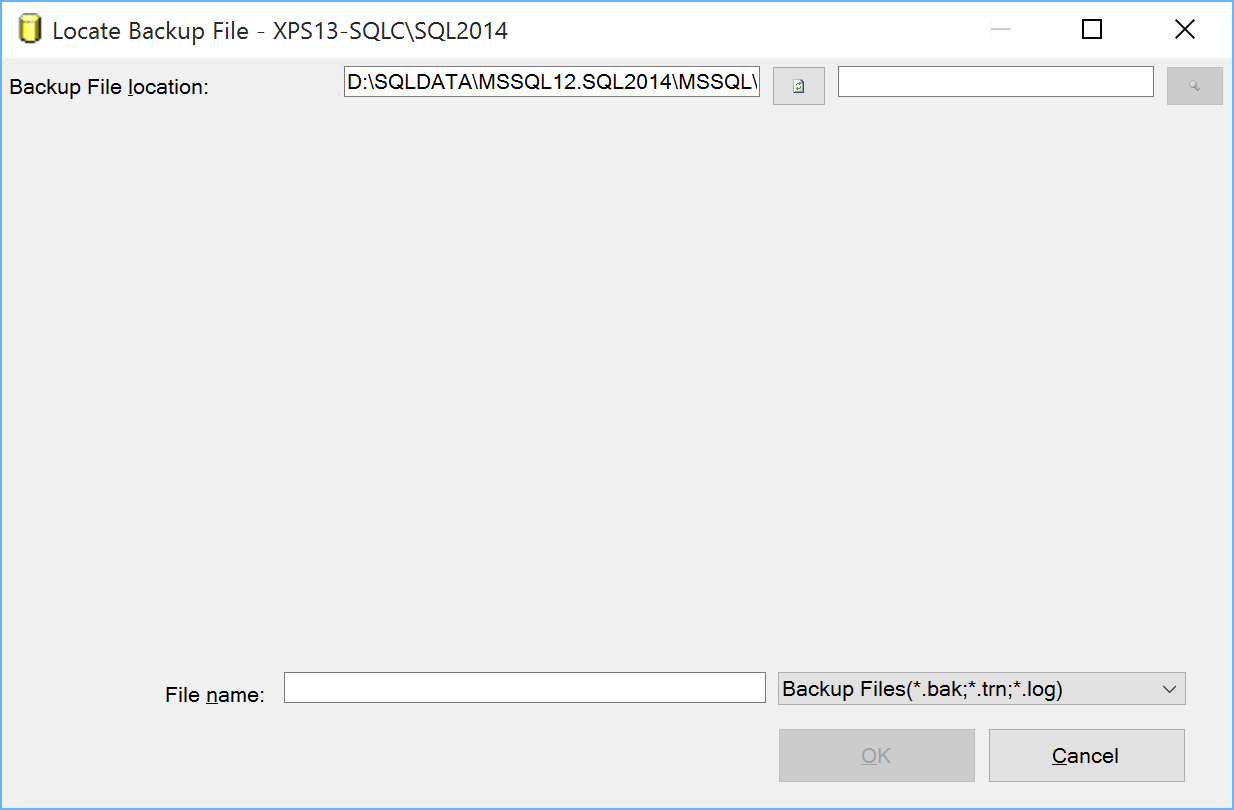
While some dialog windows are easily fixed by resizing them, some other are completely unusable. For instance, the restore database dialog, when locating a backup file, looks like this:
I’m not the first one to discover this kind of issues: Scott Hanselman posted his impressions quite a long time ago, but he offered no solution.
There’s also a Connect item that describes this issue, but… ok, you know what I’m about to say.
A new hope from an old technique
In Windows Vista, you had two possible ways of scaling applications: with the first one (the default) applications were instructed to scale their objects using the scaling factor imposed by the operating system. The results, depending on the quality of the application and the Windows version, could vary a lot. Some scaled correctly, some other look very similar to what we are seeing in SSMS, with some weird-looking GUIs. In Vista, this option was called “XP style DPI scaling”.The second option, which you could activate by unchecking the “XP style” checkbox, involved drawing the graphical components of the GUI to an off-screen buffer and then drawing them back to the display, scaling the whole thing up to the screen resolution. This option is called “bitmap scaling” and the result is a perfectly laid out GUI:
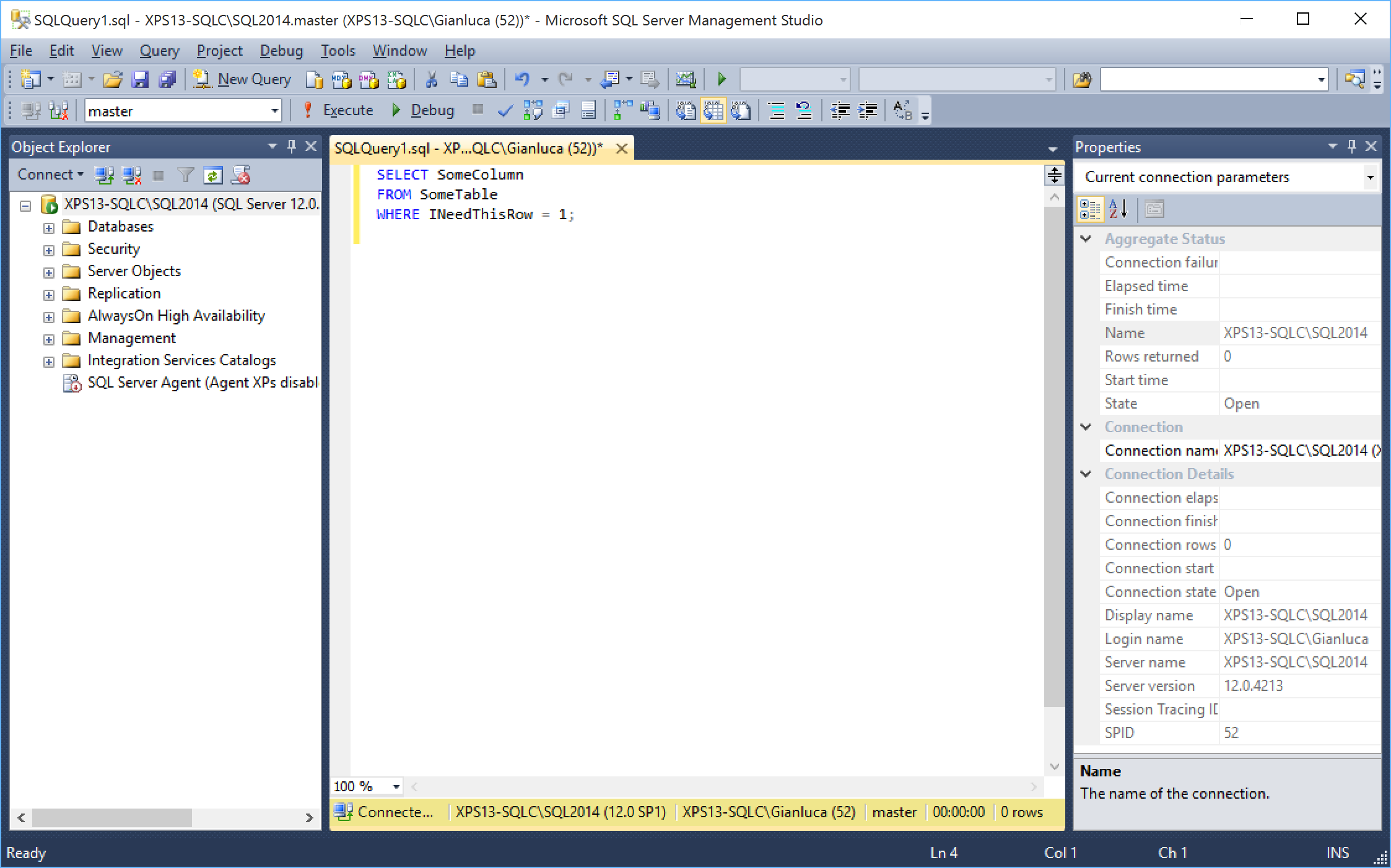
In order to enable this option in Windows 10, you need to merge this key to your registry:
Windows Registry Editor Version 5.00

[HKEY_LOCAL_MACHINE\SOFTWARE\Microsoft\Windows\CurrentVersion\SideBySide]
"PreferExternalManifest"=dword:00000001
Then, the application has to be decorated with a manifest file that instructs Windows to disable DPI scaling and enable bitmap scaling, by declaring the application as DPI unaware. The manifest file has to be saved in the same folder as the executable (ssms.exe) and its name must be ssms.exe.manifest. In this case, for SSMS 2014, the file path is “C:\Program Files (x86)\Microsoft SQL Server\120\Tools\Binn\ManagementStudio\Ssms.exe.manifest”.
Paste this text inside the manifest file and save it in UTF8 encoding:
<?xml version="1.0" encoding="UTF-8" standalone="yes"?>

<assembly xmlns="urn:schemas-microsoft-com:asm.v1" manifestVersion="1.0" xmlns:asmv3="urn:schemas-microsoft-com:asm.v3">

<dependency>
  <dependentAssembly>
    <assemblyIdentity type="win32" name="Microsoft.Windows.Common-Controls" version="6.0.0.0" processorArchitecture="*" publicKeyToken="6595b64144ccf1df" language="*">
    </assemblyIdentity>
  </dependentAssembly>
</dependency>

<dependency>
  <dependentAssembly>
    <assemblyIdentity type="win32" name="Microsoft.VC90.CRT" version="9.0.21022.8" processorArchitecture="amd64" publicKeyToken="1fc8b3b9a1e18e3b">
    </assemblyIdentity>
  </dependentAssembly>
</dependency>

<trustInfo xmlns="urn:schemas-microsoft-com:asm.v3">
  <security>
    <requestedPrivileges>
      <requestedExecutionLevel level="asInvoker" uiAccess="false"/>
    </requestedPrivileges>
  </security>
</trustInfo>

<asmv3:application>
  <asmv3:windowsSettings xmlns="http://schemas.microsoft.com/SMI/2005/WindowsSettings">
    <ms_windowsSettings:dpiAware xmlns:ms_windowsSettings="http://schemas.microsoft.com/SMI/2005/WindowsSettings">false</ms_windowsSettings:dpiAware>
  </asmv3:windowsSettings>
</asmv3:application>

</assembly>
This “Vista style” bitmap scaling is very similar to what Apple is doing on his Retina displays, except that Apple uses a different font rendering algorithm that looks better when scaled up. If you use this technique in Windows, ClearType rendering is performed on the off-screen buffer before upscaling, so the final result might look a bit blurry.
The amount of blurriness you will see depends on the scale factor you set in the control panel or in the settings app in Windows 10. Needless to say that exact pixel scaling looks better, so prefer 200% over 225% or 250% scale factors, because there is no such thing as “half pixel”.
Seeing is believing:
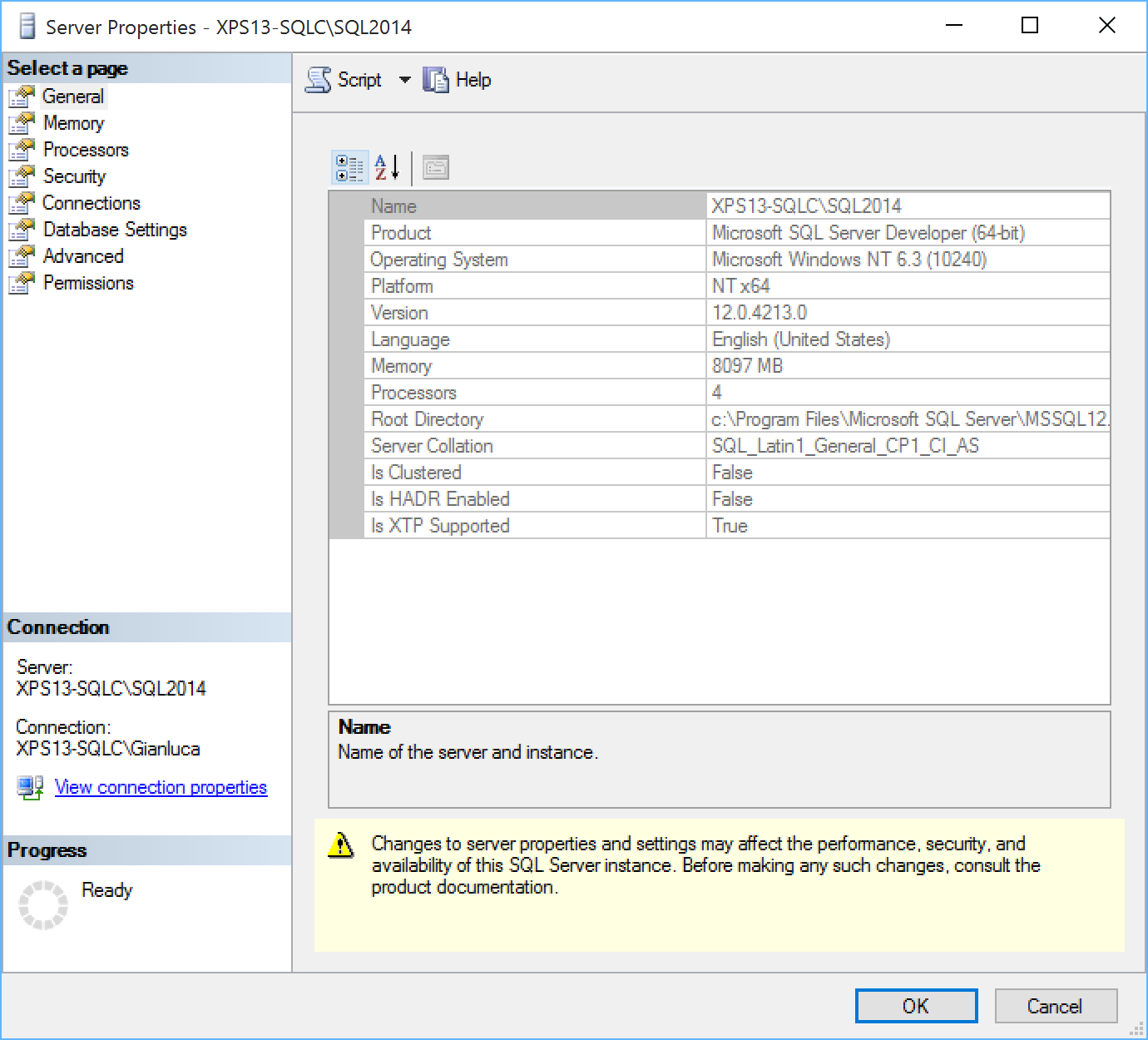
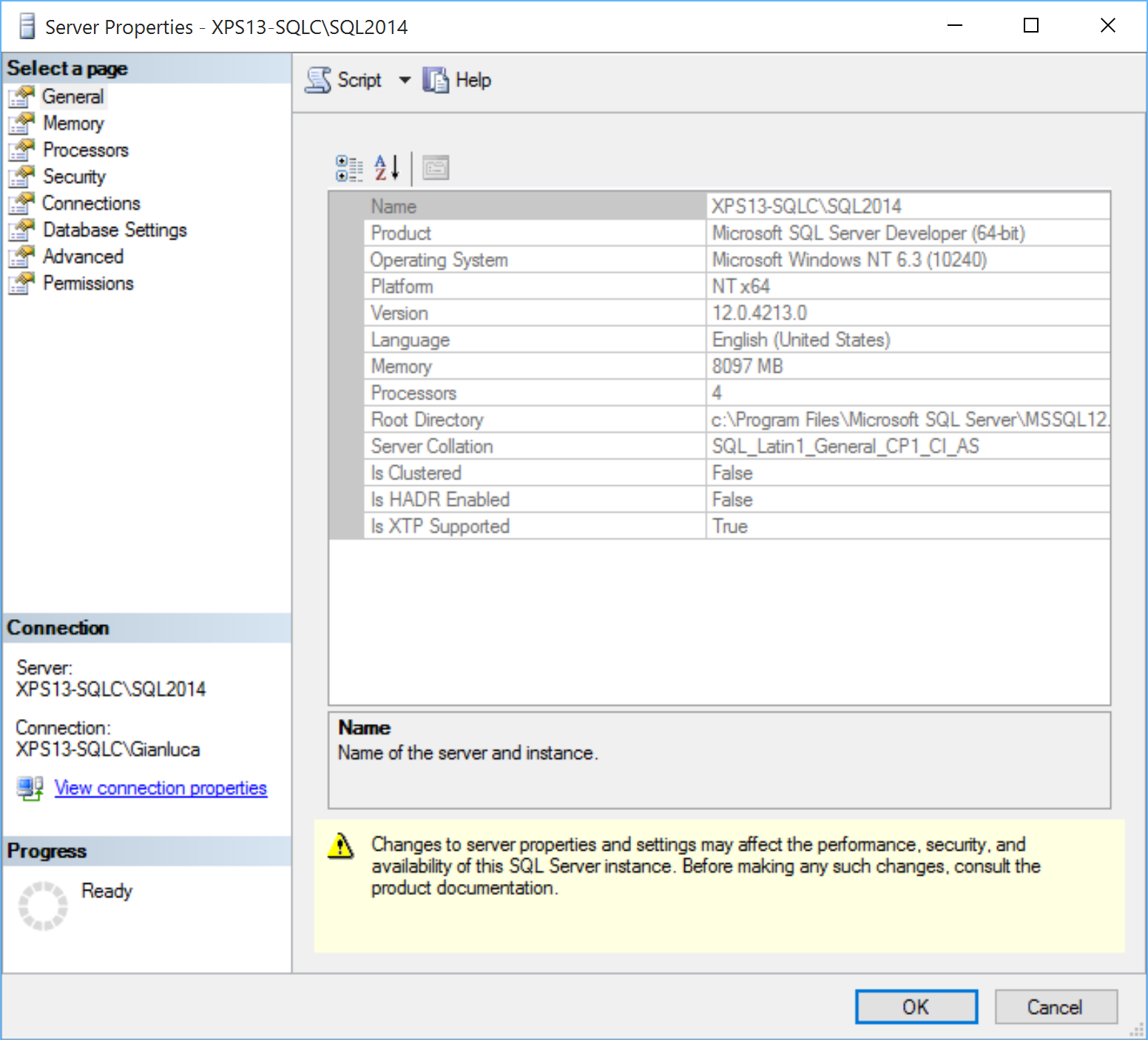
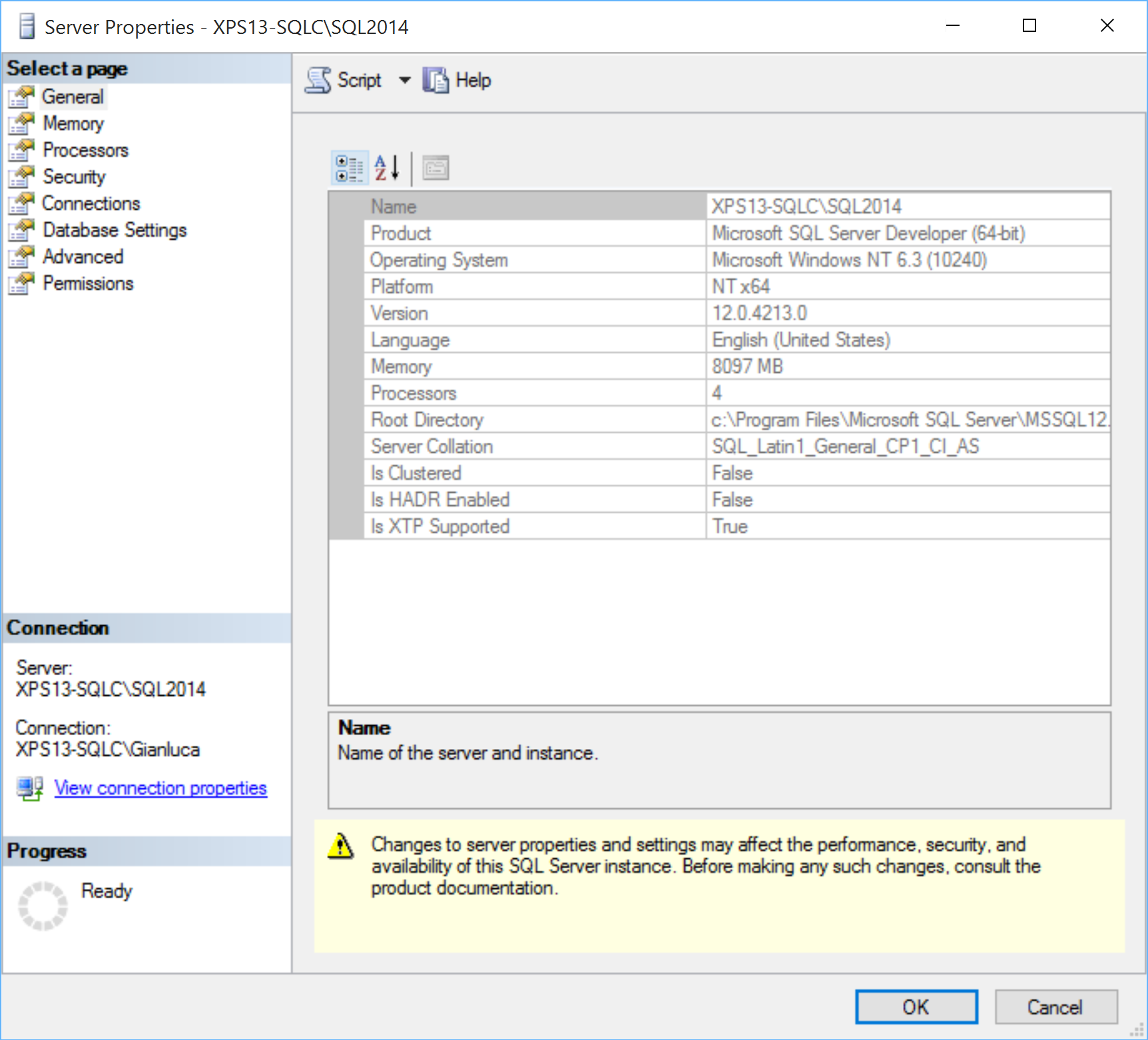
That’s it: nice and easy. Enjoy your High DPI lifestyle, until Microsoft comes up with a better solution (or a better SSMS).
Archived WordPress comments (79)
Historical comments from the original site; this archive is read-only.
I would appreciate your help guys, i am using windows 8.1 and it is very frustrating using MS SQL server with the High DPI!
Windows Registry Editor Version 5.00

[HKEY_LOCAL_MACHINE\SOFTWARE\Microsoft\Windows\CurrentVersion\SideBySide]
"PreferExternalManifest"=dword:00000001
When saving the file, put the name in quotes, otherwise notepad will try to save it as hidpi.reg.txt.
Double click the hidpi.reg file to merge it to the registry.
Regarding the manifest file, copy the XML from the post and paste it in notepad. Save it as "ssms.exe.manifest" (same caution about the quotes applies). In the save as dialog in notepad, make sure you choose the UTF8 encoding.
That's it.
Thank you Spaghettidba for both the solution and this response for those of us with less experience but the same frustration :)
I copied the manifest file to SSDT folder, it now renders fine, but it gives me an error that debug function is not available and I have to reinstall SSDT.
http://postimg.org/image/vwoy6qo1d/
This is what I can see thanks to your xml manifest put into the same folder as devenv.exe:
http://postimg.org/image/jh2m4dadb/
The results are pretty amazing. Unfortunately, when I press "Start" I get the error:
--------------------
Unable to start debugging.
The debugger is not properly installed.
Run setup to install or repair the debugger. (Microsoft.DataTransformationServices.VsIntegration)
--------------------
I had a theory that it starts another application within Visual Studio.
I found out that when you press "start" on SSIS package it runs DtsDebugHost.exe from "C:\Program Files (x86)\Microsoft SQL Server\130\DTS\Binn" (depending on your version of course). So I decided to try adding manifest with the same name to it. Sadly, this did not solve the problem. I still get the error.
make devenv.exe.manifest. open command promt same folder (you need write permission on this folder)
D:\>mt -inputresource:"C:\Program Files (x86)\Microsoft Visual Studio 14.0\Common7\IDE\devenv.exe" -out:devenv.exe.manifest
use this command. this will make visual studio manifest on your empty devenvçexçmanifest file.
Microsoft Visual Studio
false
true
this is my file. You need change only this section;
true
change true to false.
Sory for my english :)
Got a new high resolution latop with scaling and struggling to use SSMS. Here's the fix
P.S. I've also recently installed SQL Server 2016 CTP 3.3 and they appear to have applied this fix, or something similar.
Your gift just keeps on giving!
I'd like to add my thanks along with all the others. Being unable to use effectively SSMS on my new fully loaded Surface Book was driving me nuts!
You're a star.
There are a few drawbacks to this method though:
1-slight blurring of text/icons
SOLUTION: use DPI Awareness Enabler (Freeware) - easy, just drag & drop applications into the bottom pane. You will have a larger but very crisp/clear display.
2-does not work if the application is called indirectly (via another application)
You MUST click on the app yourself (L-click on the .exe or R-click >"open with" or "send to" -select desired .exe)
For example: if you click on a torrent file in Firefox >>and Firefox opens Bittorrent (when it's not already running) ..Bittorrent is NOT rescaled despite the manifest.
If anyone has a solution to this problem - PLEASE post...you are a genius.
Just FYI -there is one alternate solution which works for some apps:
Create a new environment variable named "QT_PIXEL_DENSITY_RATIO" and assign it the value "auto"
log out and log in again...and any apps which use QT will be rescaled.
*this works for Calibre and Calibre's ebook-viewer...
Kudos to Tim Zwicker for coming up with this solution.
Neither the external manifest nor environment variable solution (QT_DEVICE_PIXEL_RATIO - auto) worked for these applications. I've attached pictures (of Kindle 4 PC) - but I had to uninstall Gyration (it was 1.5" x 1.5" ....impossibly small).
http://imgur.com/zMVEhSr
http://imgur.com/rrSFlaP
http://imgur.com/sU3tQ4P
IF anyone has a fix for this please post and let me know.
ALSO : The "manifest solution" has a fairly significant drawback: it won't work if the application is started "thru" another application...
eg if you click a torrent file in Firefox >and Firefox starts Bittorrent >>Bittorrent is NOT rescaled, despite the external manifest.
IF anyone has a solution for this...again, please, please let me know!
For those who are having issues with this fix - if the app you are using is 32-bit, you may want to try changing the processorArchitecture value from "amd64" to either "x86" or "*". Not a guaranteed solution, but it may help.
It now fully supports 4K displays. I just tested it on my XPS 15 and Works great! No longer any scaling issues with SSMS. Super happy now!
I used this for SSMS 2012 on my 4k screen and it works perfectly.
When I backed out the RegEdit change and manifest (and rebooted it allow the registry to be re-read), then when I edit a report in the Report Builder, the report builder is fine (and of course SSMS is back to being an unusable resolution.
Is there any information available as to what is the conflict? Or perhaps an additional edit I could make?
Thanks!
Dave
Is there a way of using the latest SSMS on SQL 2012? Perhaps I'm misunderstanding something about that. (I wouldn't be the first time!)
Thanks for your help.
Dave
Thanks for your help!
I had forgotten that Microsoft no longer ties SSMS to a particular version.... plus now the Developer's Edition of SQL is free.
Using the latest version of SSMS does indeed solve the 4k monitor problem for both the SSMS and SSRS' Report Builder.
Thanks for your help.
Dave
"Error while trying to run project: Unable to start debugging.
An error occurred that usually indicates a corrupt installation (code 0x80040155). If the problem persists, repair your visual studio installation via 'Add or Remove Programs' in Control Panel."
Removing the manifest file and the error is gone.
It has recommended resolution of 3840*2160 and scale of 250%.
Your help is very much appreciated.
Thank you
1. Go to the file's (.exe file) properties
2. Go to Compatability
3. Select 'Change high DPI settings'
4. Select 'Override high DPI scaling behavior' and select 'System (Enhanced)' from the drop-down box.
Done or else play around as per intuition and something will hit right. Thanks!
1). Right Click - SSMS.exe
2). Click - Compatibility panel
3). Click - Change high DPI setting button
4). Click - Override high DPI scaling behavior checkbox
5). Select - System or System Enhanced in Scaling Performed by dropbox
6). Click - Ok button
7). Click - Apply button
8). Click - Ok button