Today I was reading William Durkin‘s fine post on Presentation Mode in SSMS vNext when inspiration struck.
One of the things that really annoys me when presenting is the transition between slides and demos. Usually, I try to improve the process as much as possible by having the least minimum amount of windows open while presenting, so that I don’t land on the wrong window. Unfortunately, that is not always easy.
Another thing that I would like to be smoother is the transition itself. The ideal process should be:
- Leave the powerpoint slides open at full screen
- Switch immediately to the virtual machine with the demos
- Go back to the slides, to the exact point where I left
I could also use ALT+Tab to switch to the Virtualbox window, but this would briefly show the list of running applications, which is not exactly what I want.
Turns out that Windows 10 has the perfect solution built-in: Virtual Desktops.
Here is the setup described:
- If you press WIN+Tab, you will see a "New desktop" button on the bottom right corner. Use it to create three desktops:
- desktop 3 for the slides
- desktop 2 for the demos
- desktop 1 for the rest
- Press WIN+Tab, find your virtual machine and move it to desktop 2. It is really easy: you just have right click the window you want to send to a different desktop and select which desktop to use.
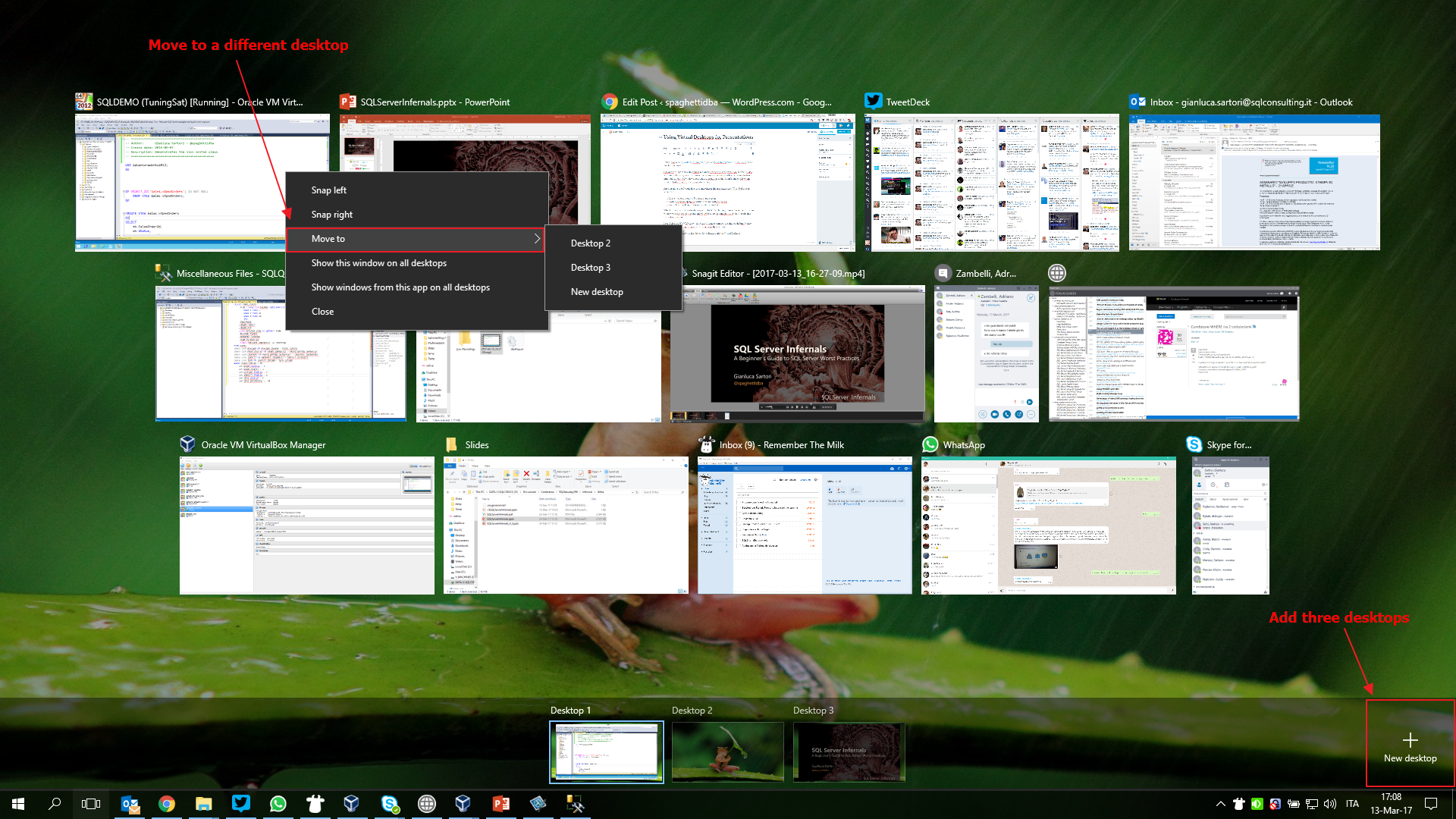
- Open your presentation and start it by pressing F5. Again, hit WIN+Tab, find the fullscreen window of your PowerPoint presentation and move it to desktop 3.
- In order to transition from one desktop to another, you can use the hotkey CTRL+WIN+Arrow, as shown in this GIF:

Archived WordPress comments (6)
Historical comments from the original site; this archive is read-only.
Thanks for the heads-up. BTW, the transition animation can be disabled:
Press Win+X and select System.
Click on advanced system settings.
On Advanced TAB click on performance settings.
On Performance Options - Visual Effects, uncheck "Animate windows when minimizing and maximizing".